
Getting Started with AI Explain
Learn how to install, set up, and use the AI Explain add-on for Anki in just a few minutes.
Installation
Install from AnkiWeb
-
1.
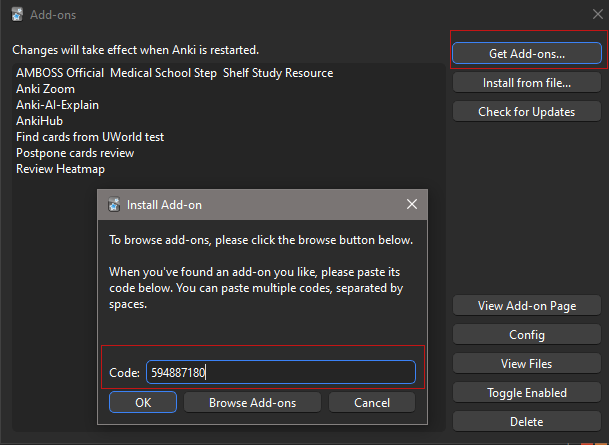
Open Anki and go to Tools → Add-ons
-
2.
Click Get Add-ons...
-
3.
Enter the code: 594887180
-
4.
Click OK and wait for the download to complete
-
5.
Restart Anki to activate the add-on
Setup & Configuration
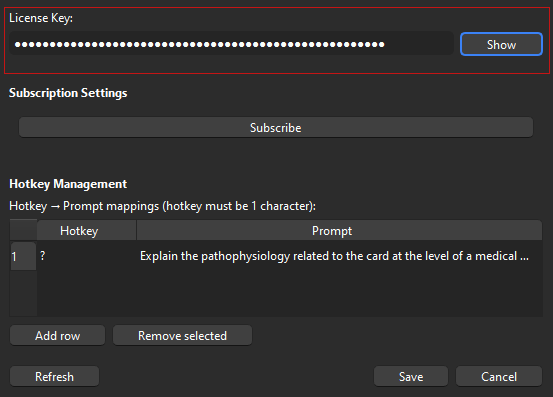
Enter Your License Key
You received your license key after purchasing a subscription. If you can't find it, use the recovery option on the pricing page.
-
1.
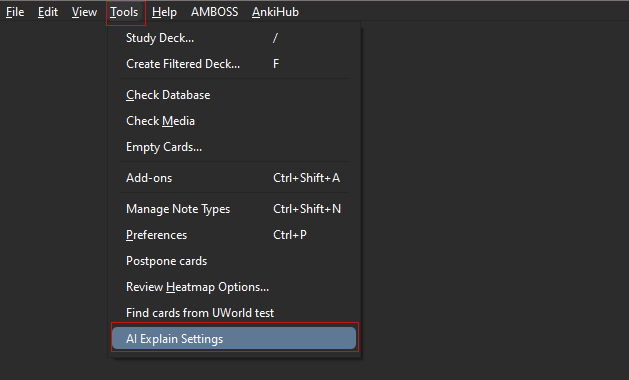
Open Anki and go to Tools → AI Explain Settings
-
2.
Enter your license key in the License Key field
-
3.
Click Refresh or Save to save your settings
Customizing Prompts & Hotkeys
Personalize your AI Explain experience with custom prompts and hotkeys to match your learning style and study needs.
Setting Up Custom Hotkeys
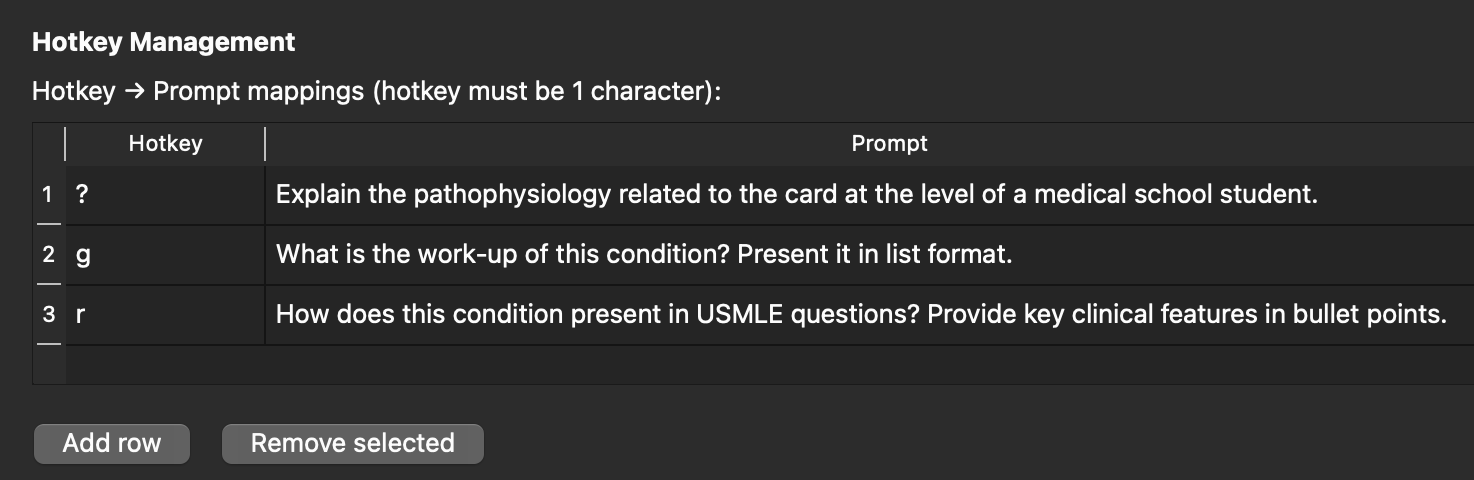
Create multiple keyboard shortcuts, each with its own custom prompt. This allows you to generate different types of explanations instantly.
-
1.
Open Tools → AI Explain Settings
-
2.
In the Hotkey Management section, click the hotkey field you want to customize
-
3.
Press your desired key combination (e.g., Ctrl+E, Alt+1, etc.)
-
4.
Enter your custom prompt in the text field next to the hotkey
-
5.
Click Save to apply your changes
Writing Effective Custom Prompts
Your prompt tells the AI how to explain the card content. Tailor prompts to different subjects or explanation styles.
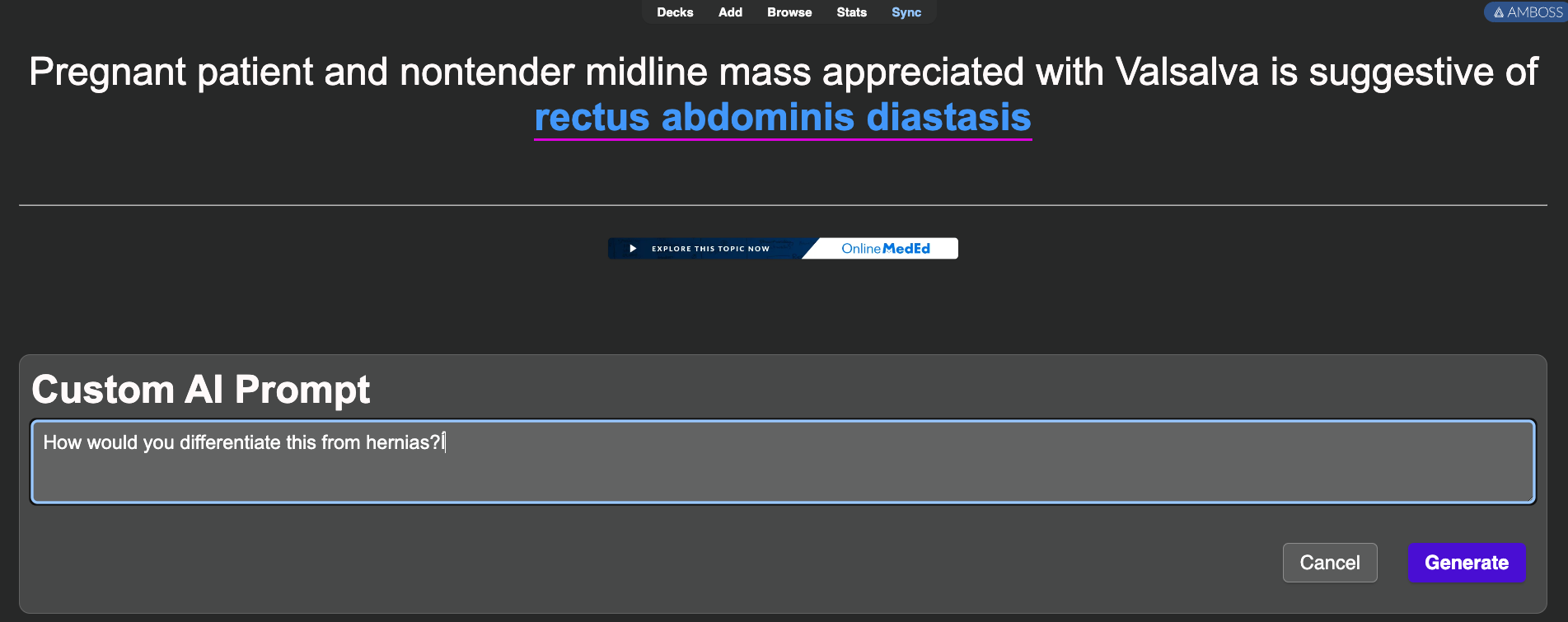
Creating Prompts On-the-Fly
Beyond prewritten prompts, you can type custom prompts for any card without saving them permanently.
-
1.
While reviewing a card, press your designated hotkey
-
2.
Instead of using the preset prompt, a dialog will appear allowing you to type any custom request
-
3.
Enter your specific question or explanation request (e.g., "Compare this to [related topic]", "Create a mnemonic for this")
-
4.
Press Enter or click Generate to get your custom explanation
Customization Best Practices
-
•
Multiple hotkeys: Set up 2-3 different hotkeys for different explanation depths or subjects
-
•
Memorable shortcuts: Choose hotkeys that are easy to remember and don't conflict with Anki's defaults
-
•
Specific prompts: The more specific your prompt, the better the AI can tailor explanations to your needs
-
•
Test and iterate: Try different prompt phrasings to find what works best for your study material
How to Use
Generating an Explanation
-
1.
Open any deck and start reviewing cards
-
2.
When you encounter a card you want explained, use your custom hotkey to generate an explanation based on your prompt
-
3.
Wait a few seconds for the AI to generate the explanation
-
4.
Read the explanation displayed in the card
-
5.
The explanation is automatically saved for future reference
-
5.
In addition to prewritten prompts, you can also create custom prompts on-the-fly by using the your hotkey and writing in the text space.
Managing Your Explanations
All AI-generated explanations are automatically saved to your cards and sync across all your devices via AnkiWeb.
Accessing Explanations
Platform Capabilities
- ✓ Generate new explanations
- ✓ View explanations
- ✓ Edit explanations
- ✗ Generate new explanations
- ✓ View explanations
- ✓ Edit explanations
Tips for Best Results
-
💡
Use AI Explain for cards you find confusing or need deeper understanding
-
💡
Review previous explanations before exams to reinforce learning
-
💡
Customize prompts to match your learning style and subject matter
-
💡
Monitor your monthly generation limit in the add-on settings
-
💡
Set a comfortable hotkey to speed up your workflow
Troubleshooting
The add-on isn't showing up after installation
Make sure you've restarted Anki after installing the add-on.
Check Tools → Add-ons to verify AI Explain is in the list and enabled.
Invalid license key error
Double-check that you copied the entire license key without extra spaces.
If you purchased recently, wait a few minutes for the system to process your subscription.
Use the recovery option on the pricing page to retrieve your key.
Explanation generation is slow or timing out
Check your internet connection. The add-on requires an active connection to generate explanations.
Very long or complex cards may take longer to process. Try simplifying your card content if issues persist.
I've reached my monthly generation limit
Your credits reset at the start of each billing cycle (monthly from your subscription date).
Consider upgrading to a higher tier plan if you frequently hit the limit.
Upgrading to a higher tier will take effect immediately.
Downgrading or canceling will take effect at the end of your current billing cycle.
Previously generated explanations remain accessible even after reaching the limit.
Explanations aren't showing on Anki Mobile
Make sure you've synced your collection after generating explanations on desktop.
Sync your mobile device to download the latest card data.
Explanations are stored in card fields and should appear automatically during review.
Still need help?
Contact our support team at aiexplainhelp@gmail.com